
Passport Reader SDK: A Practical Kiosk Integration Guide
Published: 07/10/2026
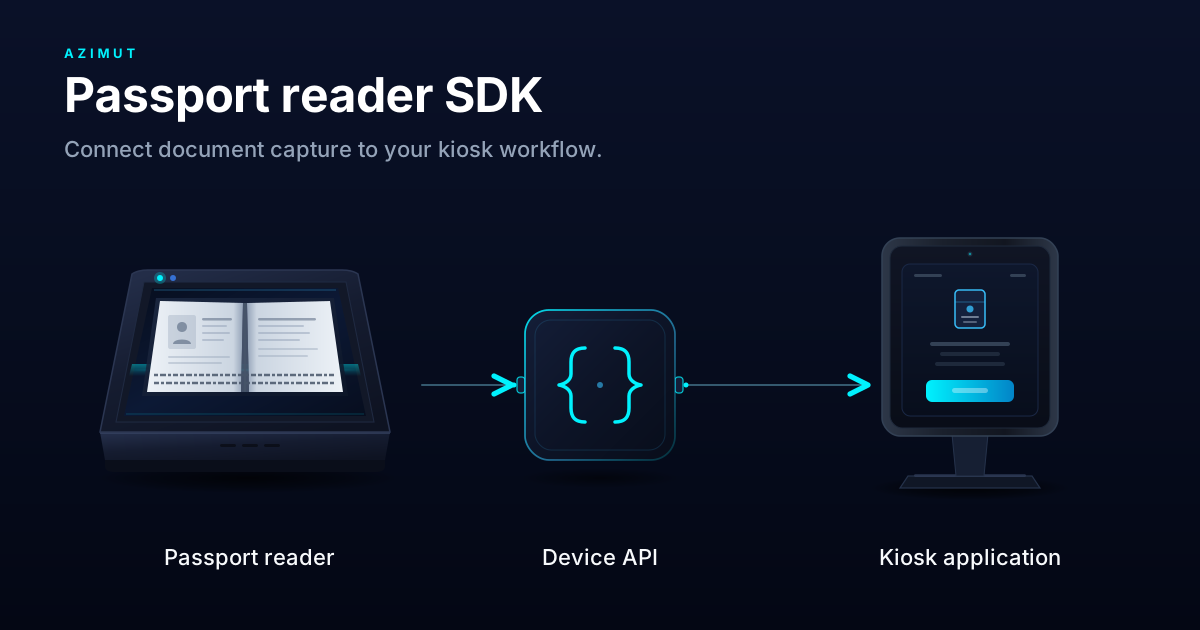
A passport reader SDK connects a physical passport scanner to your application. It gives the application a way to start a read, receive document data and handle the reader's status. At a self-service kiosk, those operations become part of a customer journey: opening an account, registering for a service or completing an identity-led onboarding step.
The useful question is how that document step behaves inside the whole service. A customer may place the passport incorrectly, remove it before capture finishes or present a page the reader cannot interpret. Your application needs a clear response for each case, along with a reliable way to continue once it has the required data.
This guide covers the practical decisions behind passport scanner integration, from the returned fields to the failure states you should test before rollout.
Start with the data your workflow needs
For many passport workflows, the starting point is the machine-readable zone, or MRZ: the lines of characters printed on the passport's data page. A reader can extract those characters and software can interpret them as fields such as the document number, holder's name, nationality, date of birth and expiry date. ICAO's passport specifications in Doc 9303, Part 4 define the MRZ layout for machine-readable passports.
Decide which fields your service needs and how it will handle an incomplete result. A readable document number alone may be enough to retrieve a pending application, while another workflow may require additional fields before it can proceed. Define those requirements with the team that owns the onboarding process.
Keep the captured value and your application's interpretation distinct. MRZ names use a defined character representation, and dates have a compact format. Preserve the source information needed to understand a parsing problem while deciding how names and dates should appear on the customer-facing screen. Doc 9303, Part 3 describes the common representation rules and check digits used to detect reading or interpretation errors.
Ask the SDK provider for a documented result structure. It should explain which fields are available, how missing values are represented and how your application can identify an unsuccessful capture. If confidence scores, document images or check results are available, confirm their meaning and availability for the exact reader you plan to use.
Define the capture and authentication scope
Optical passport reading and electronic passport chip reading require different capabilities. An optical reader captures the printed document information. Reading an ePassport chip requires a compatible contactless reader, supported chip-access software and a defined authentication process.
Keep these outcomes separate in your integration: document data captured, MRZ checks completed, chip authentication completed where required, and the customer's identity checks completed. Each result answers a different question, and your application should retain that distinction when deciding the next step.
For ePassport validation, ICAO describes passive authentication as checking the digital signature to establish that chip data came from the issuing authority and has not been altered. Confirm which chip and authentication functions your reader integration supports before making them a requirement of the customer journey.
The evaluation should cover the complete combination of hardware, firmware, software and workflow. A specification sheet for the scanner alone does not describe everything your deployed application will receive.
Build a document step customers can recover from
The application should check that the reader is available before inviting the customer to scan. Once capture begins, the screen needs to explain where to place the passport, when to hold it still and when it can be removed. Use the capture outcome to decide whether to continue, request another attempt or offer an assisted route.
A timeout, a disconnected reader and an unreadable document need different handling. A timeout may call for repositioning and another attempt. A disconnected device calls for an availability message and an operational fault. A partial result should identify the missing information and guide the agreed retry or review step.
Tie each capture to the current kiosk session. If the customer cancels, the session expires or the reader reconnects, prevent a delayed result from populating the next customer's application. Define how retries replace earlier results and how the document step ends when the customer leaves.
Operations also need useful fault information. Record the device state, capture outcome and diagnostic context needed to investigate a failed session. Keep passport images and personal fields out of routine operational logs, and decide separately where the workflow needs to retain document data and who can access it.
Confirm compatibility on the kiosk you will deploy
Evaluate the passport reader SDK against the exact reader model, firmware, connection type and kiosk operating system. Confirm runtime dependencies, licensing, driver installation and device permissions. Test the application account used in production, including after a restart or reader reconnection.
Your integration should also fit the application stack. A vendor library may require a particular runtime, while a middleware API can expose device operations to several application languages. Check how the SDK represents errors, manages capture state and supports updates before committing to either approach.
Azimut SDK is a hardware-agnostic middleware platform with a language-agnostic JSON API. Your team can use an HTTP client from C#, Java, Python or Node.js while the middleware handles supported device integration. For a passport reader project, confirm the model and capture functions with the integration team and request the current API contract. The document step can then fit alongside the other devices in the kiosk workflow. Explore the Azimut SDK integration approach and hardware integrations.
Evaluate the complete journey before rollout
A useful proof of concept starts with the target kiosk and representative test documents. Exercise successful reads alongside the cases that can interrupt a customer journey. Set acceptance criteria for the required fields, retry behaviour and the time the whole document step takes, including customer positioning and backend responses.
| Evaluation case | What to confirm |
|---|---|
| A successful capture | Required fields reach the correct session, and the application continues once. |
| An incomplete or unreadable capture | The application reports a clear outcome and provides the agreed retry or assisted path. |
| Cancellation or session expiry | Pending captures cannot update a later customer's session. |
| Reader disconnect and reconnect | The application recognises the fault and follows a defined recovery path. |
| A device or software update | Supported operations and the returned data contract still behave as expected. |
| Chip reading, when required | Access and authentication results are available and handled separately from optical capture. |
Use the results to agree the supported deployment configuration and the remaining integration work. A repeatable document step gives the application team a stronger foundation for the rest of the onboarding journey.
For the wider workflow, read the passport scanner API overview. To evaluate a reader with Azimut, request an integration demo with your reader model, kiosk operating system, application stack and required capture functions.
Try it yourself
Book a demo
See how Azimut SDK works in your self-service environment. We'll walk through your use case, hardware setup, and integration options.
Continue reading
Integrate the Fujitsu F53 from C# and .NET
Call the Fujitsu F53 cash dispenser from C# over a JSON API: readiness checks, dispense requests, response cod…
One JSON API for Every Language
Why a kiosk platform should expose a language-agnostic JSON API instead of per-language libraries, and what th…
Control Kiosk Hardware from Python
Use Python against the Azimut JSON API: check dispenser readiness, dispense an amount, and read device status …